15. Android Auto
VictronConnect can be used with Android Auto to display key information on your car's display.
Any Victron devices which are connected under "My devices" in your VictronConnect device list will be shown on your Android Auto device.
Note
Devices will only appear in Android Auto if they are paired and connected to your phone. Unknown or unpaired devices (shown under “Other devices” in your phone's Device list) will not be displayed.
Note
Apple CarPlay is not currently supported.
Note
Device configuration is not possible from the Android Auto unit.
15.1. Setup
The following instructions presume that you have already connected your phone to your vehicle's Android Auto system and VictronConnect is already installed on your phone.
This will open the "Customise Launcher" app on your phone. | 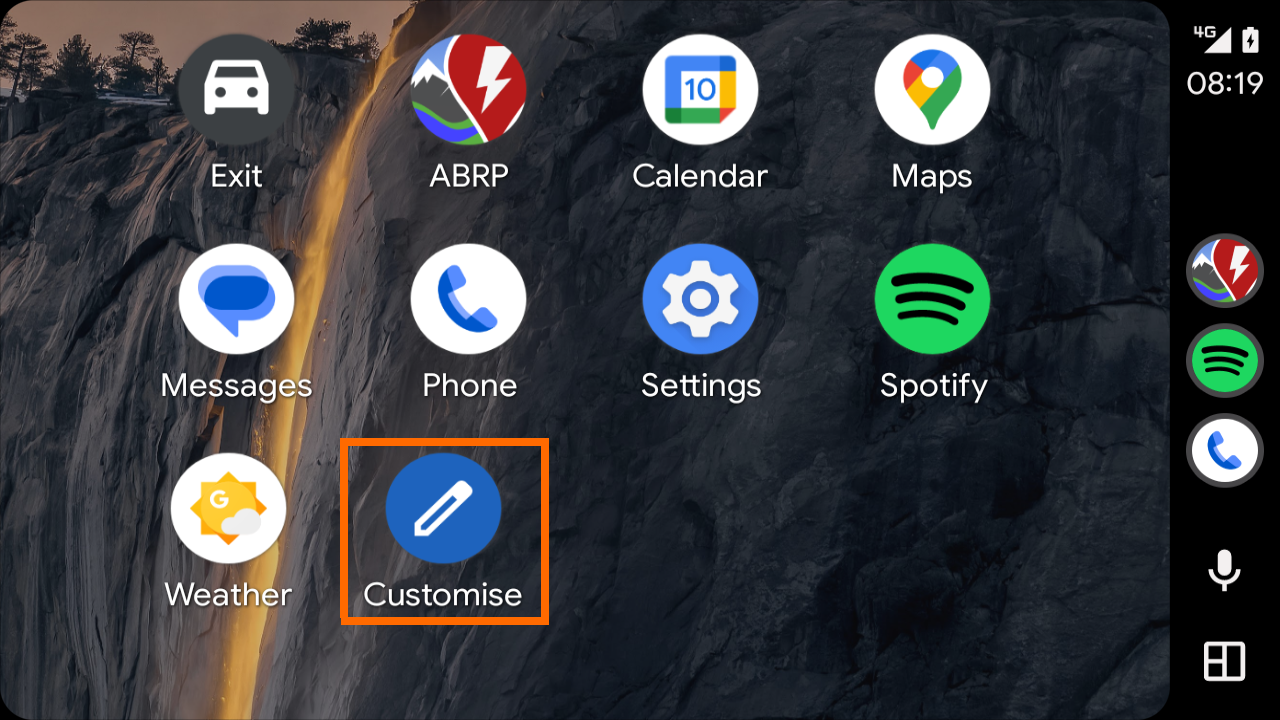 |
VictronConnect will now appear near the top of the list. The checkmark indicates that it will be available on your Android Auto app launcher screen. TipDrag the VictronConnect entry up or down in the list to reorder it on your Android Auto app launcher screen. | 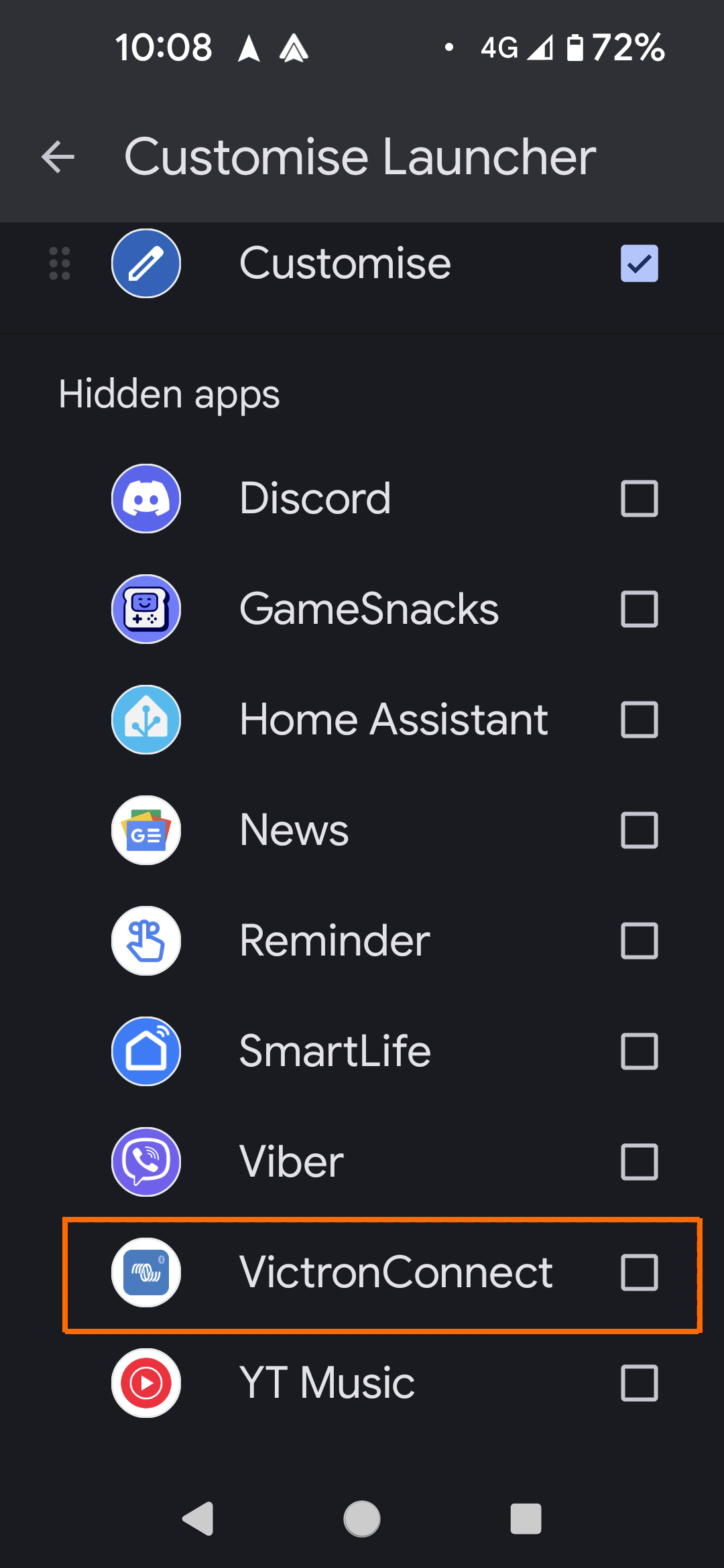 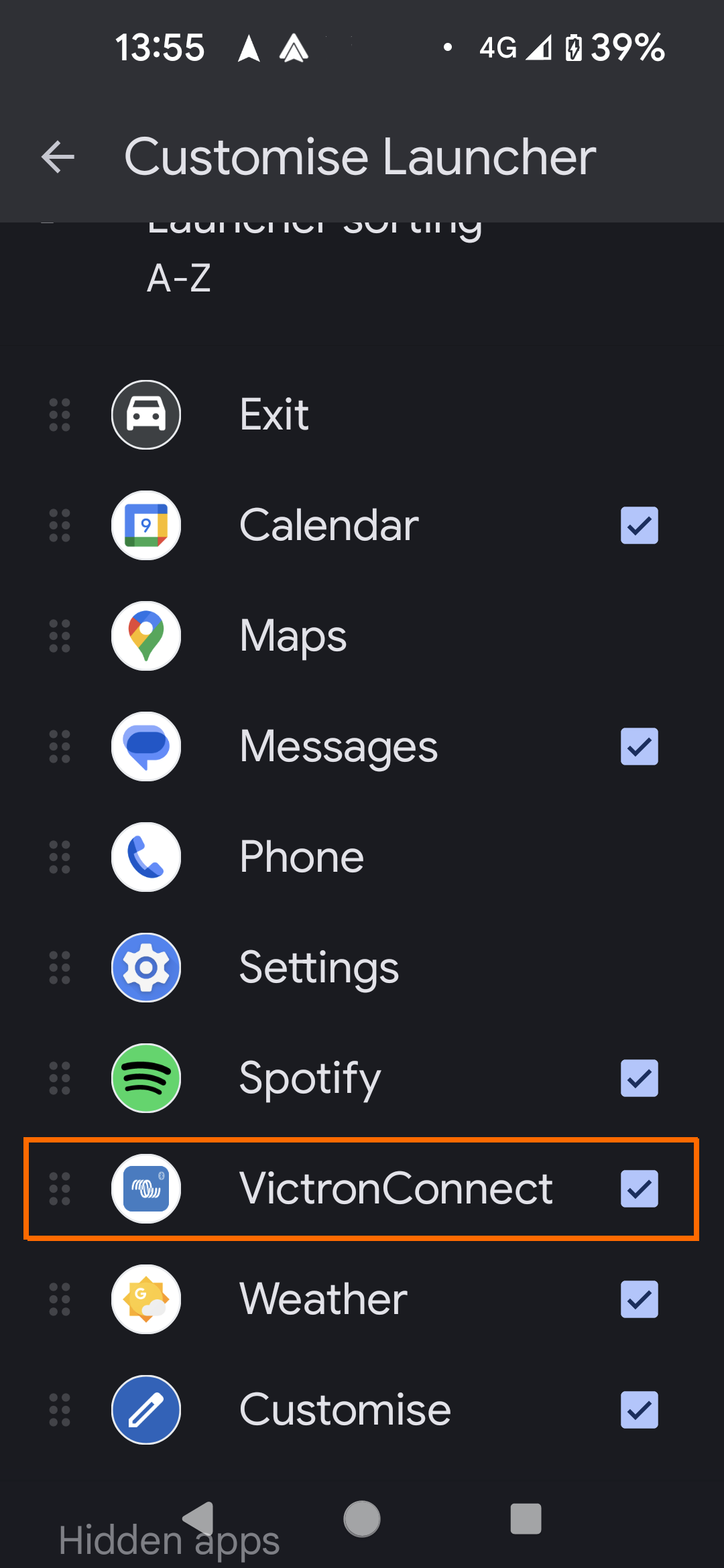 |
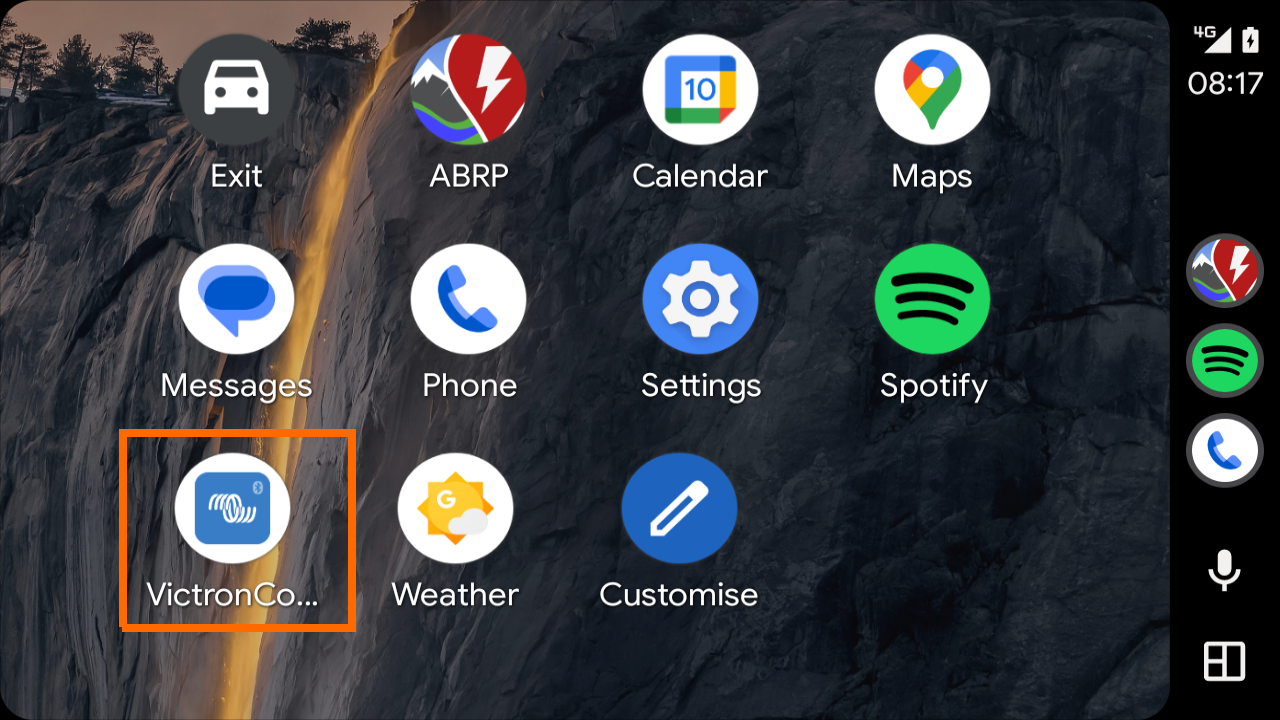
The VictronConnect shortcut will now appear on your app launcher screen.
|  |
15.2. Using VictronConnect in Android Auto
After launching VictronConnect from the app launcher screen, you may need to wait a short while for known products to be shown. | 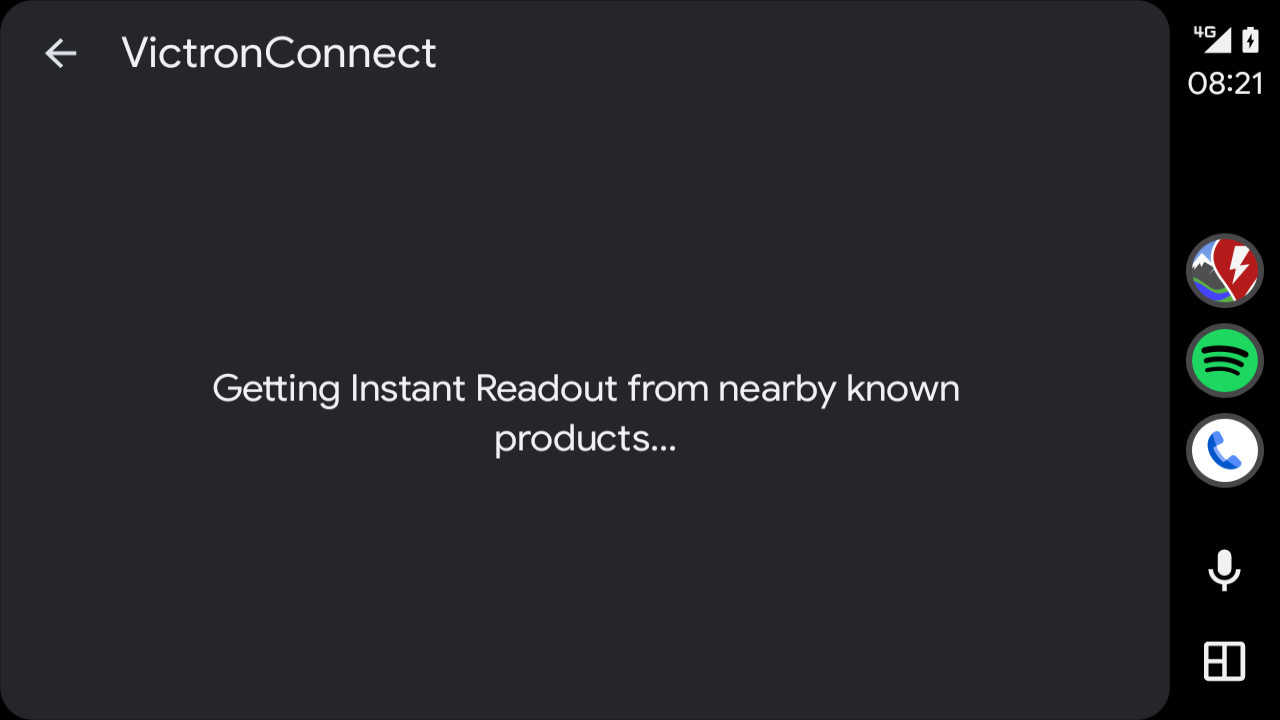 |
Any known products which are currently connected to your phone will be displayed. Instant readout information for each connected device will be shown. NoteOnly devices that are already paired with your phone and appear under “My devices” in your VictronConnect device list will show up here. New or unpaired devices will not appear here. Pair them with your phone first. | 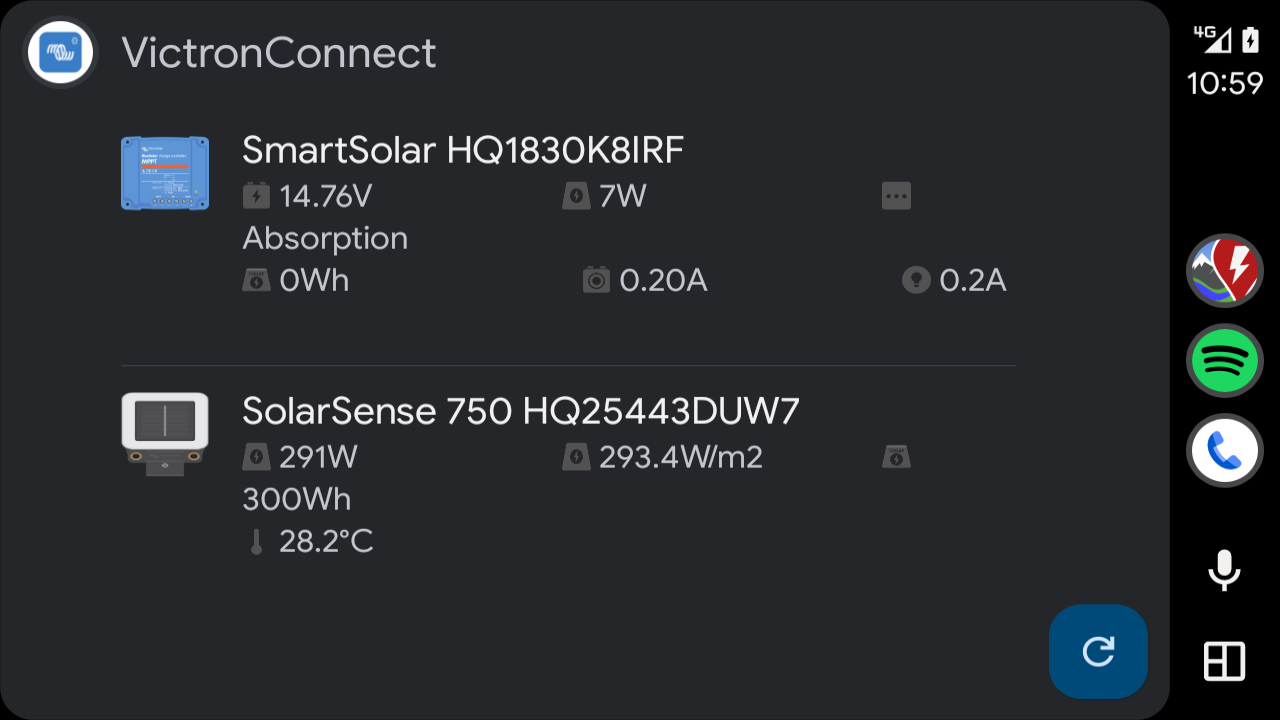 |
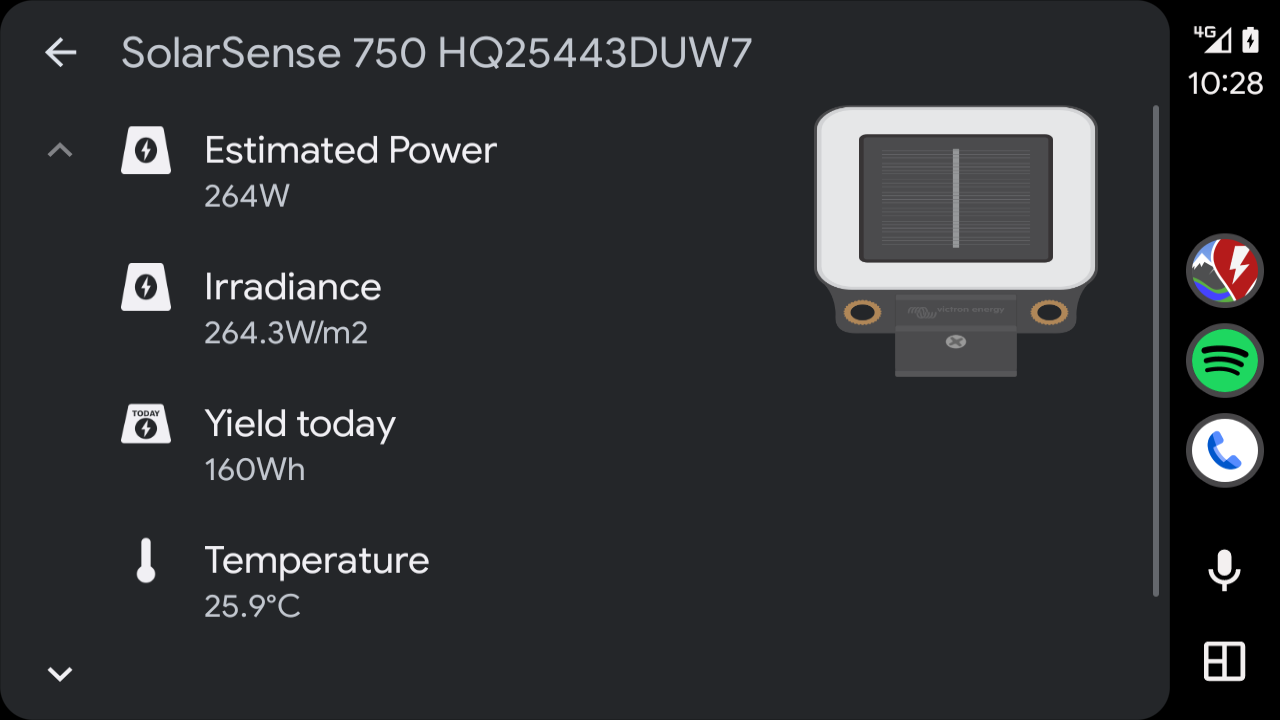
You can select a specific device to view only its data.
|  |